

Trigger Windows
Trigger Windows
Capture frequency says how often. A Trigger Window says when it is allowed. Together they turn 'every hour, forever' into 'every hour, but only when it matters'.
What a Trigger Window is
A named set of rules about time, attached to a Web Profile. It does not start captures — it shapes where the next one lands. When a run would fall outside the window, it is moved forward to the next moment the window allows.
A window never adds captures
Creating one
- 1
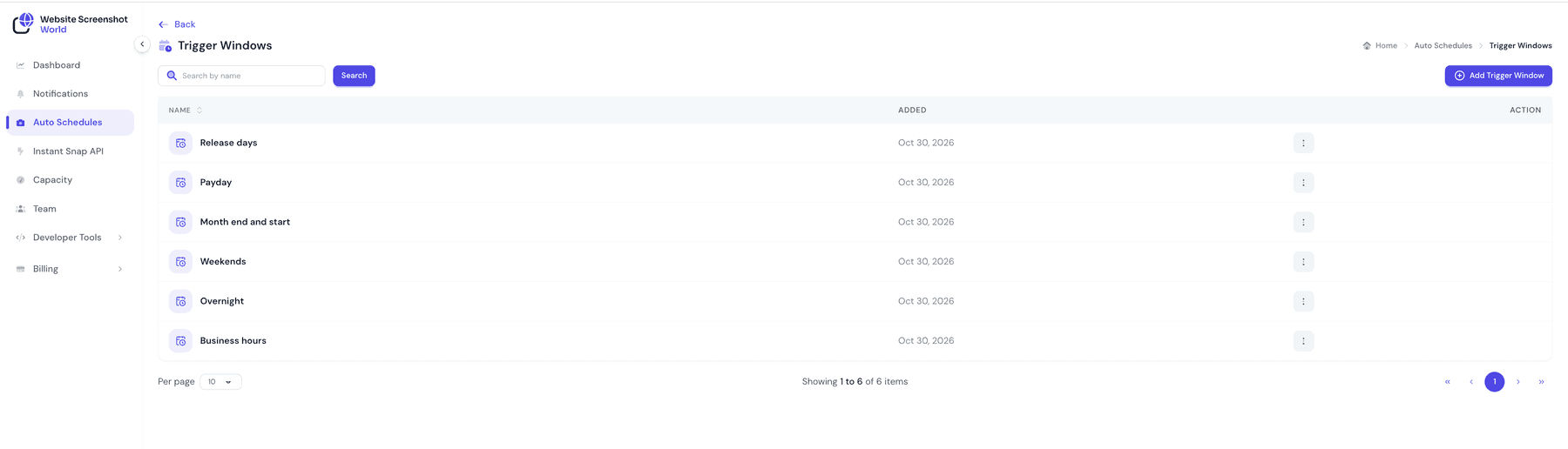
Open the list
Auto SchedulesConfigureTrigger Windows, then Add Trigger Window.
- 2
Name it
Trigger Window Name is required, and it is what you will pick from a dropdown on the profile later. “Month end”, “Office hours”, “First of the month”.
- 3
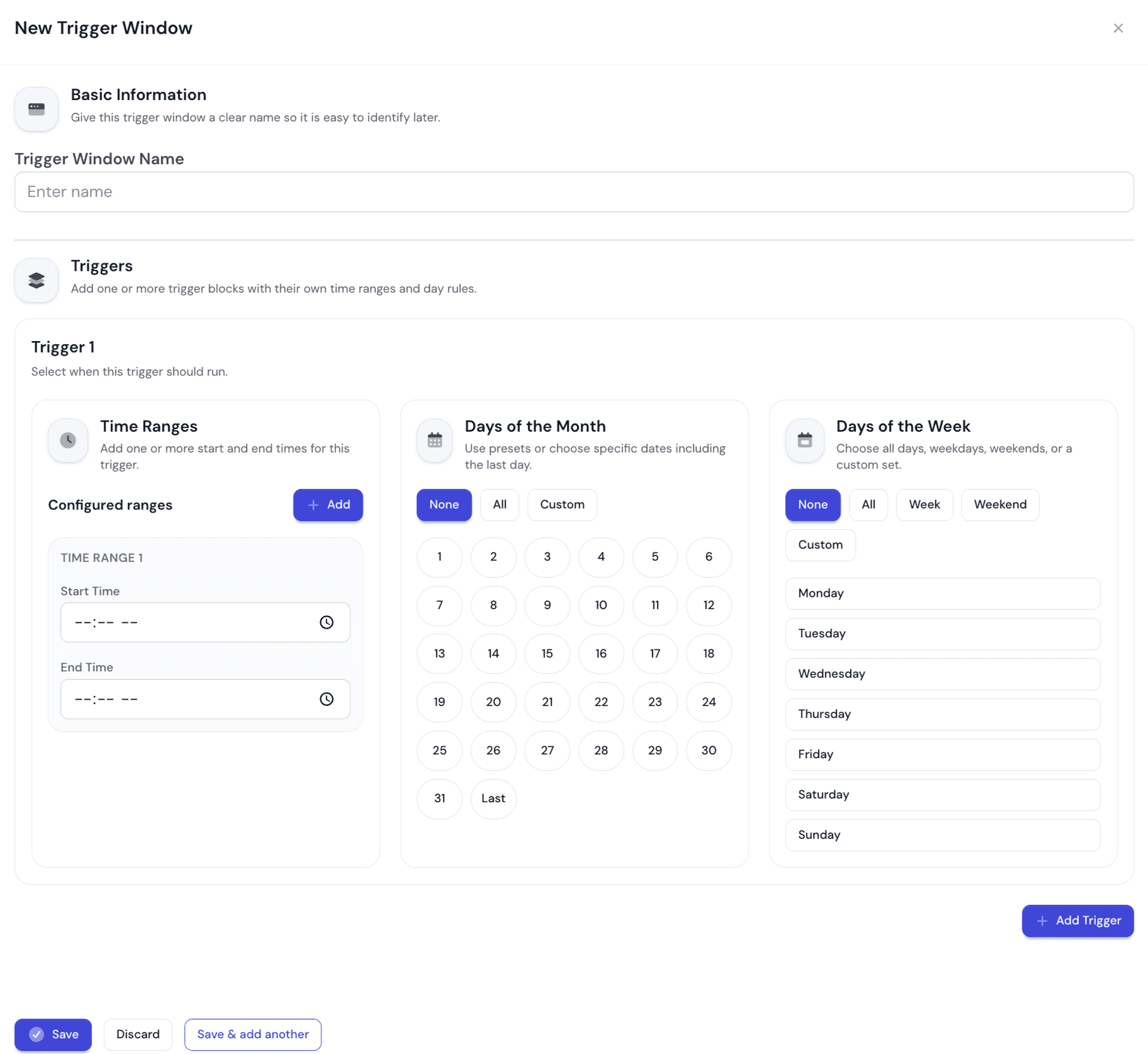
Fill in Trigger 1
Every window has at least one trigger, laid out as three cards side by side: time ranges on the left, days of the month in the middle, days of the week on the right.
- 4
Add more triggers if you need them
Add Trigger appends Trigger 2, and so on. Each is an independent rule, which is how one window can express two unrelated patterns.
Inside a trigger
| Field | Type | Default | Description |
|---|---|---|---|
Time RangesRequired | Start and end times | — | At least one, added with the Add button and numbered TIME RANGE 1, 2 and so on. Both ends are required, and the start must not be later than the end. |
Days of the Month | None · All · Custom | — | Custom reveals a grid of 1 to 31 plus Last, which means the final day of whichever month it is — so it is correct in February without special handling. |
Days of the Week | None · All · Week · Weekend · Custom | — | Week is Monday to Friday, Weekend is Saturday and Sunday, Custom lets you tick the seven days individually. |
Days of the Month and Days of the Week work together
The form checks all of this when you save, and will tell you if:
- the window has no name;
- a trigger has no time range, or a range is missing its start or end;
- a range’s start time is later than its end time;
- a trigger has no days selected at all.
How the parts combine
| Value | Meaning |
|---|---|
Between triggers | Any one of them is enough. A moment allowed by Trigger 2 is allowed, whatever Trigger 1 says. |
Within one trigger | The day and the time must both match. A trigger set to the 1st, 09:00–17:00 fires on one day a month — not on the 1st and also every afternoon. |
Between time ranges | Any one range containing the moment is enough. |
Three details worth knowing, because they are easy to be caught out by:
- Both ends are inclusive. 09:00–17:00 includes both 09:00 and 17:00 exactly.
- A range cannot cross midnight. 22:00–02:00 is rejected on save. To cover a night, use two ranges — 22:00–23:59 and 00:00–02:00.
- A moved run lands at the earliest start time of the trigger, not at the next range that would have contained it. With ranges of 09:00–12:00 and 14:00–17:00, a run due at 20:00 moves to 09:00 on the next allowed day.
Times are read in the schedule's time zone
Worked examples
| Value | Meaning |
|---|---|
Office hours | One trigger: time range 09:00–17:00, Days of the Month set to All. With an Hourly frequency that is nine captures a day instead of twenty-four. |
Weekdays, office hours | One trigger: time range 09:00–17:00, Days of the Week set to Week. Nothing is captured on Saturday or Sunday. |
Office hours, split for lunch | One trigger, two ranges — 09:00–12:30 and 13:30–17:30 — with Days of the Month set to All. |
Month end | One trigger: Days of the Month set to Custom with only Last ticked, and a time range covering when you want it. Correct in every month length. |
The 1st and the 15th | One trigger: Custom with 1 and 15 ticked, plus a time range. |
Two unrelated patterns | Two triggers in one window — for instance the 1st at 06:00–08:00, and Last at 18:00–20:00. |
Attaching it to a profile
On the Web Profile form, open Fine-tuning › When captures may run and choose the window under Allowed window. Leave it on Any time and captures run whenever the frequency says.
- One window, many schedules. Because it lives on the profile, every schedule sharing that profile obeys the same window. Change the window once and all of them follow.
- It shapes the next run, not the current one. Attaching a window does not cancel a capture that is already due; the effect shows from the following run onwards.
- Captures you start by hand ignore it. Quick Capture runs straight away, whatever the window says.
- Where one page needs different hours, clone the profile and give the copy its own window rather than editing the shared one.
Windows are how you control cost, not just noise
Did this page answer your question?
Tell us what is missing