

Getting started
Quick start
Ten minutes from a new account to a screenshot that captures itself every day and lands in your storage. No scripts, no cron job, no server.
Before you start
Website Screenshot World separates what to capture from how to capture it. An Auto Schedule holds the URLs and the cadence. A Web Profile holds every rendering decision — device, resolution, image or video or PDF, ad blocking, country, retention, where the file is delivered.
One profile can serve hundreds of schedules, which is why the application asks for a profile first.
A Web Profile comes first
The five steps
- 1
Create your account and start a plan
Sign up, then either press Start free trial on the dashboard — no card needed — or pick a plan under BillingPricing. Your plan sets your monthly capture volume and included storage; you can change it later.
- 2
Create a Web Profile
Go to Auto SchedulesConfigureWeb Profiles and press Add Web Profile. The defaults are deliberately sensible — you only need to fill in three things:
- Name — something you will recognise in a dropdown later, such as Landing page · desktop · US.
- Format — Png is a good first choice.
- Keep captures for — pick Keep until I delete them while you are trying things out.
Everything else already has a working default: desktop at 1920 × 1080, a viewport capture, 30 second page timeout, ads and pop-ups blocked, captured from the United States. Switch Capture mode to Full Page if you want the whole page rather than the first screen.
- 3
Create your first Auto Schedule
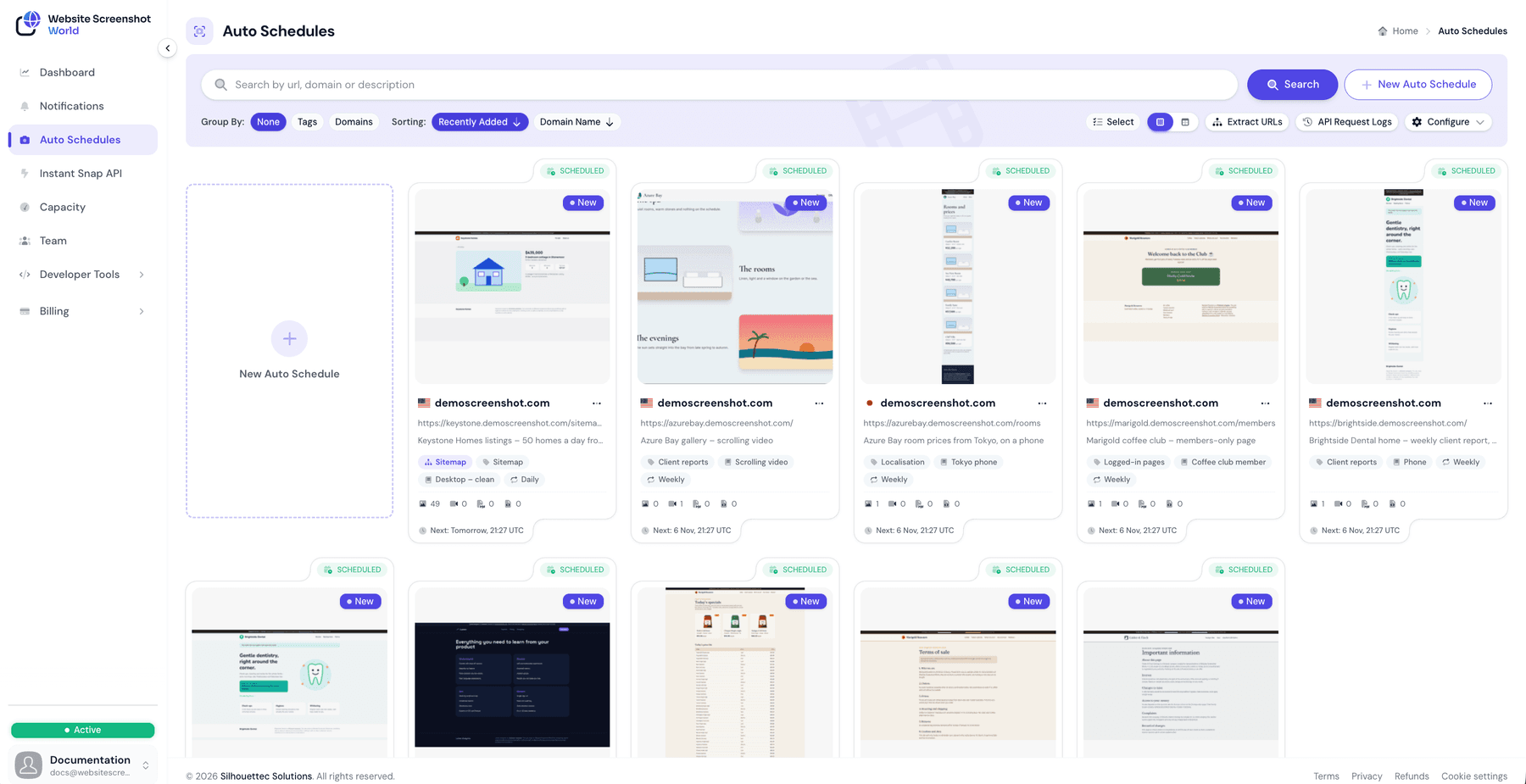
Open Auto Schedules and press New Auto Schedule. Fill in:
- URLs — one per line. You can paste up to 10; each line becomes its own schedule. For a whole site, choose Sitemap instead.
- Web profile — the one you just made. A preview card shows what it will do.
- How often — choose Daily for now.
Leave Start on Immediately, then press Save.
- 4
Take a capture right now
Rather than waiting for the schedule to come round, open the menu on your new schedule and choose Quick Capture. It runs the identical pipeline, immediately, and is the fastest way to confirm the page renders the way you expect.
- 5
Send the files somewhere
Captures are visible in the app straight away. To have them delivered as well, connect a destination under Auto SchedulesConfigureCloud Storage — Google Drive, Dropbox or any S3-compatible bucket — then set Deliver to on the Web Profile to My defaults or Choose…. Cloud delivery is included in every paid plan.
Check it works
Open the schedule to see its captures. Each one records the time it was taken, the resolution, the file size, the country it was captured from and the page’s HTTP status, so a capture that looks wrong can usually be explained without leaving the page.
- A blank or half-loaded page normally means the page needed longer — raise Page timeout on the Web Profile.
- A cookie banner in the shot that Dismiss pop-ups did not catch is handled with a hide or click selector under Page tweaks on the schedule.
- A login wall needs cookies or headers on the Web Profile (paid plans only).
Status tells you the state at a glance
Did this page answer your question?
Tell us what is missing