

Developer tools
API keys
Each published API takes a key of its own. Creating one takes a moment; the part that catches people out is that you get exactly one chance to copy it.
A key per API
Both published APIs read the X-Api-Key header, but each takes its own kind of key. The API Keys page has a tab per API — Instant Snap API and Auto Schedule API — and a tab appears only when your plan includes that API. Create the key on the tab of the API you are going to call. Both draw on the same plan quota.
| Value | Meaning |
|---|---|
Instant Snap API — wsw_api_… | Captures any URL you post to it. Its history appears on the Instant Snap API page. The same key drives the MCP server and the playground. |
Auto Schedule API — wsw_autoapi_… | Triggers a capture of a schedule you already built. Its results appear on that schedule, not on the Instant Snap API page. |
A key sent to the other API is refused, with a message that names the kind of key that API takes. Keeping the two apart is deliberate: a key that can capture any URL is not the same secret as a key that can fire your schedules, so a leaked one reaches less.
Full request and response details are in the API reference.
Creating a key
- 1
Open API Keys
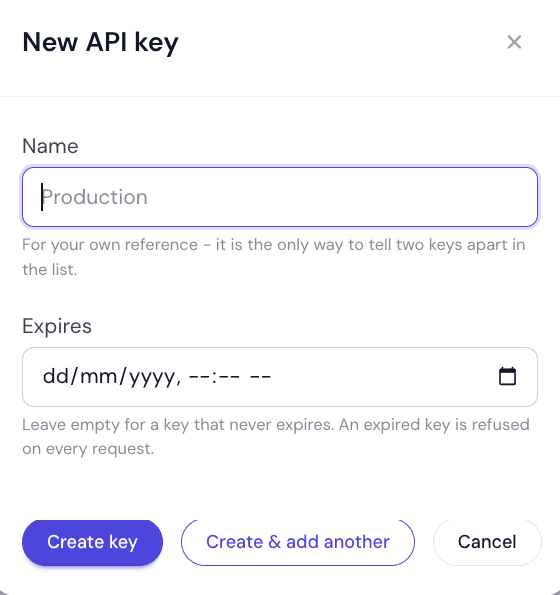
Developer ToolsAPI Keys, pick the tab of the API the key is for, then New key.
- 2
Name it after what will use it
“CI pipeline”, “reporting job”, “Zapier”. When you later need to revoke one without breaking the others, the name is the only thing that tells you which is which.
- 3
Set an expiry, or don't
Optional. Leaving it empty creates a key that never expires.
- 4
Copy the secret
This is the important step, and it only happens once. See below.
Create key creates it; Create & add another creates it and leaves the panel open for the next one. Whether you can create keys at all depends on your role.
| Field | Type | Default | Description |
|---|---|---|---|
NameRequired | Text | — | Up to 128 characters. Shown in the list; the secret never is. |
Expires | Date and time | — | Optional. Leave empty for a key that never expires. |
No scopes, no IP restrictions
Each person can hold up to 25 keys of each kind.
The secret is shown once
Copy it before closing the dialog
- Use the Copy button rather than selecting the text by hand.
- Paste it into your secret store before you press I have saved it.
- Afterwards, only the key prefix is ever displayed — enough to identify a key in a list, not enough to use it.
Treat it like a password
What the list tells you
| Value | Meaning |
|---|---|
Name | What you called it. A key the MCP connector created for itself is named MCP connector with a date. |
Key Prefix | The first characters of the key — how you match a row to a key you hold. |
Status | Active or Revoked. |
Expires | “Never”, a date, a date in amber when it is within a fortnight, or “Expired” in red once it has passed. |
Last Used | When a request last presented it, or “Never used”. |
Usage | How many requests it has authenticated. |
Created | When it was made. |
Last Used and Usage are your audit trail
Revoking, deleting, rotating
Each key’s menu offers View API Key, Edit API Key and Delete API Key.
“View API Key” does not show the key
| Value | Meaning |
|---|---|
Revoke | Edit the key and switch Status to Revoked. Every request presenting it is rejected until it is made active again. Reversible. |
Delete | Removes the key entirely, after a confirmation. Not reversible. |
There is no rotate button
If a key has leaked, revoke it immediately and create a replacement. Do not wait to find out what was using it.
Did this page answer your question?
Tell us what is missing