

Auto Schedules
Create an Auto Schedule
The form has four sections and needs three things from you: the pages, a Web Profile and a cadence. This page covers every input, what it accepts, and the rules it enforces.
Opening the form
Go to Auto Schedules and press New Auto Schedule. The form opens as a panel over the list, so you keep your place. Save creates the schedules, Discard closes the panel, and Save & add another saves and gives you an empty form for the next batch.
At the top, In plain words reads the schedule back to you in one sentence — how many pages, which profile, how often and when it starts — and a line at the bottom says how many schedules will be created.
You need a Web Profile first
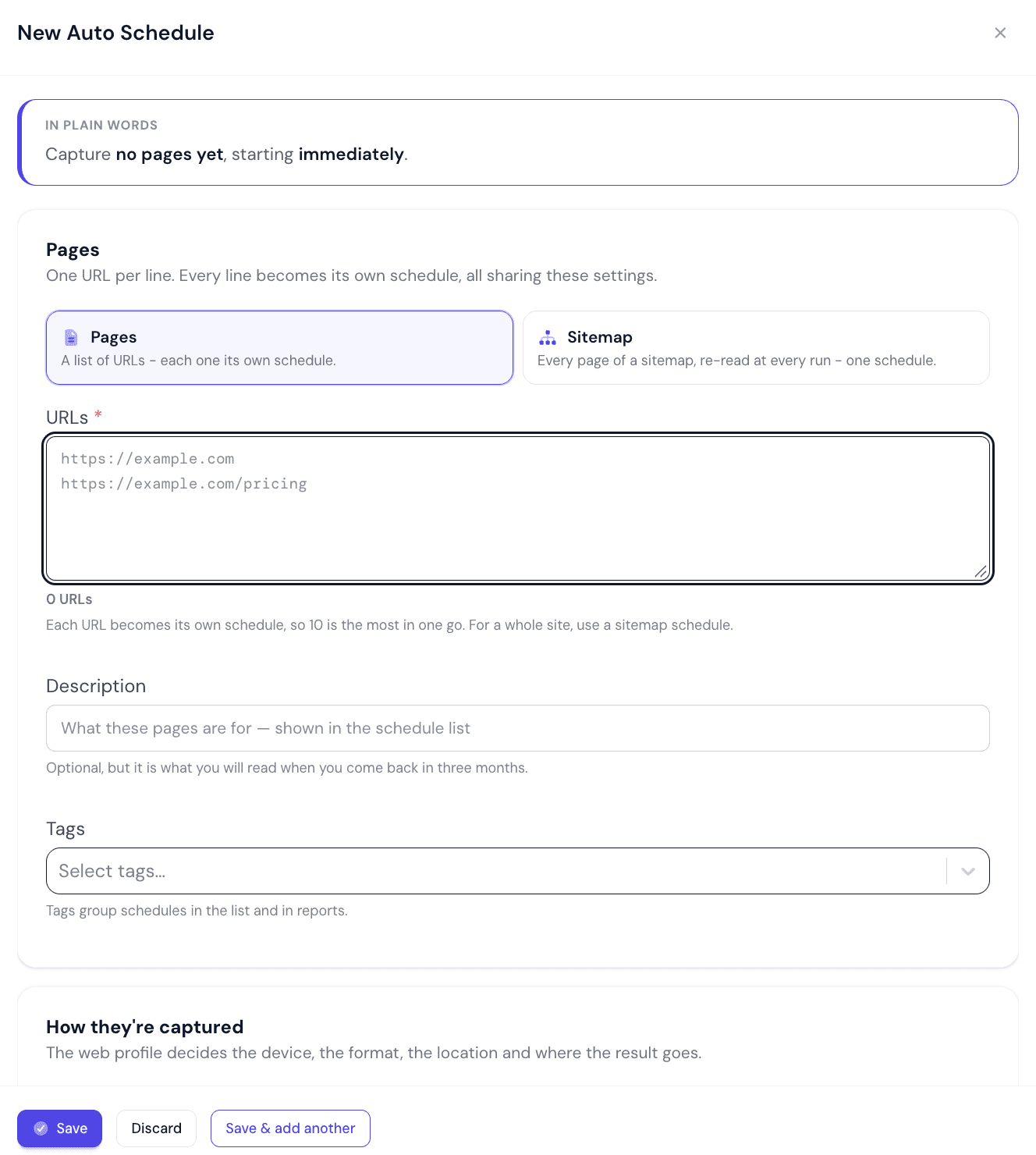
Pages
A new schedule first asks what to capture: Pages, a list of URLs where each one becomes its own schedule, or Sitemap, one schedule that captures every page of a sitemap on every run. Sitemap is included in Pro, Business and Business Plus and has its own page: Sitemap schedules. The kind cannot be changed after the schedule is created.
| Field | Type | Default | Description |
|---|---|---|---|
URLsRequired | One per line | — | Each line must be a full address starting with http:// or https://. Every line becomes its own schedule with the settings below, up to 10 at a time. When you edit an existing schedule this is a single URL field. |
Description | Text | — | Optional. Shown in the schedule list and searchable from it. Worth filling in once you have more than a handful of schedules. |
Tags | Multi-select | — | Any number of tags, used to group and filter the list. Create them under Configure → Tags. |
Adding many URLs at once
There are two ways to create a batch of schedules in one pass.
- Paste a list. One URL per line in the URL box. The count under the box says how many you have, and any line that is not a valid URL is named back to you rather than silently skipped.
- A whole site. Choose Sitemap instead of Pages: one sitemap schedule captures every page a sitemap lists. To get a sitemap's addresses as a list, use Extract URLs on the Auto Schedules page, which downloads them as a CSV.
How they're captured
Pick the Web profile these captures should render with. As soon as you choose one, a preview card shows what it will actually do — device, resolution, location, cloud storage and blocking — so you can catch the wrong profile before you save rather than after the first capture.
Create a new profile under the field opens the Web Profile form. From a new schedule, saving the profile brings you back with it chosen.
Retention lives on the profile
When it runs
| Field | Type | Default | Description |
|---|---|---|---|
CadenceRequired | Choice | Choose a preset | Choose a preset shows the preset cadences as buttons under How often. Set my own interval shows four boxes under Repeat every. Covered in Capture frequency. |
Start | Choice | Immediately | Immediately runs the first capture as soon as the schedule is saved. At a specific time lets you set it. |
First capture at | Date and time | — | Only when Start is At a specific time. This is also the anchor the interval counts from. |
Stop after | Date and time | — | Optional. Once it passes, the schedule stops on its own and its status becomes Stopped. Leave it empty to keep capturing until you pause the schedule. |
Schedule Time Zone | Time zone | Use my global time zone | The zone the start, stop and capture times are read in. Leave it on your global time zone unless this page should follow another region's clock — then 09:00 means nine in the morning there. |
Daylight saving gaps are rejected
Page tweaks
Optional selectors that change the page before the shot is taken. They describe this particular page, so they live on the schedule. A sitemap schedule has only Hide these elements, applied to every page of the sitemap. Covered in full in Advanced selectors.
| Field | Type | Default | Description |
|---|---|---|---|
XPath of the element | XPath | — | Under Capture one element instead of the page. Captures only this element. Image profiles only; video and PDF are always the whole page. |
Click this element | XPath | — | Under Do something before the shot. Click this element first — a tab, a “show more” link, a banner the profile did not catch. |
Hide these elements | CSS or XPath | — | Up to 25 selectors, separated by commas, hidden before the shot — a chat bubble, a sticky bar, a promo strip. |
Hover over this element | XPath | — | Hold the pointer here so a dropdown or tooltip is in the shot. |
Did this page answer your question?
Tell us what is missing