

Organization
Team
Schedules, profiles, captures and API keys belong to the organization, not to whoever created them. Team is where you decide who is in it and what they may do.
One organization, many people
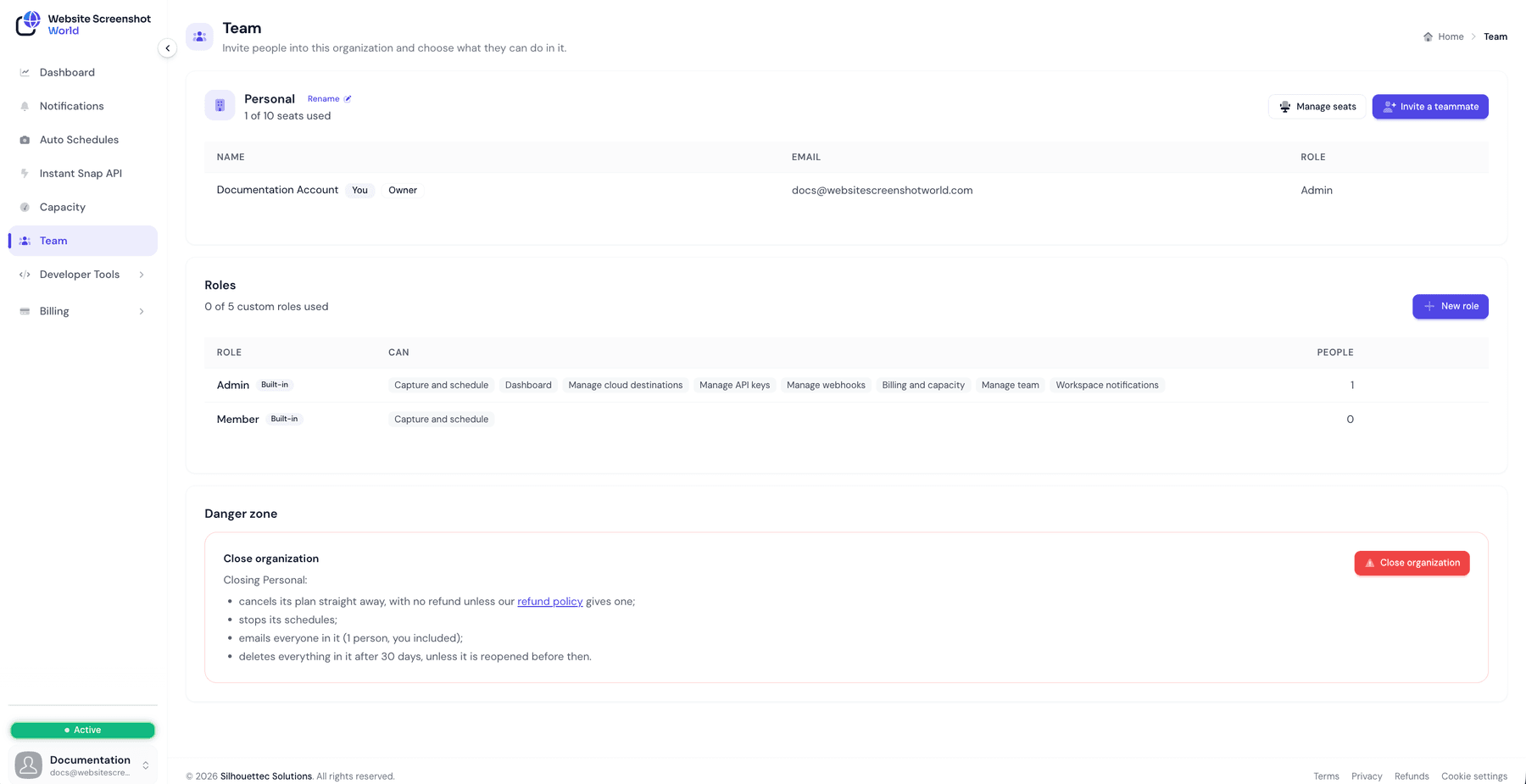
Everyone you invite works in the same workspace: the same schedule list, the same history, the same destinations. There is nothing to share or hand over — a colleague who joins sees what you see, within what their role allows. Members are listed under People on Team, with their role; the person who created the organization is marked Owner.
| Value | Meaning |
|---|---|
Starter and Pro | One person. There are no seats to add. |
Business | 3 people included, up to 5 in total with purchased seats. |
Business Plus | 10 people included, up to 50 in total with purchased seats, and up to five roles of your own. |
Free trial | One person. |
Inviting someone
- 1
Open Team and choose Invite a teammate
You need a free seat, and a role that can manage the team. - 2
Enter their email address and pick a role
In the Invite a teammate panel. The role decides what they can do from the moment they accept. It can be changed later. Send invitation sends the email. - 3
They accept the invitation
Until then they are listed as Invited, not yet joined, with a Cancel action — there is no resend; to send it again, cancel it and invite the address afresh. The seat is checked again when they accept, and the invitation is refused if the seat has gone in the meantime.
Roles
What a role can do is set by switches, and each switch opens part of the workspace. Two roles are built in:
| Value | Meaning |
|---|---|
admin | Everything, including API keys, webhooks, destinations, billing and the team. |
member | Capture and schedule: create and run captures, manage schedules, profiles, tags and trigger windows, and use the playground. |
On Business Plus you can create up to five roles of your own with New role, from these switches. A role with none of them switched on can sign in and nothing else, until one is turned on.
| Value | Meaning |
|---|---|
Capture and schedule | Create and run captures, manage schedules, profiles, tags and trigger windows, and use the playground. |
Dashboard | See the dashboard: the plan, usage, storage and the throughput split. |
Manage cloud destinations | Connect and change the Google Drive, Dropbox and S3 destinations. |
Manage API keys | Create and revoke the organization's Instant Snap and Auto Schedule API keys. |
Manage webhooks | Add and change webhook endpoints, and rotate the signing secret. |
Billing and capacity | See and change the subscription, invoices, billing address, add-ons and throughput settings. |
Manage team | Invite and remove people, change their roles, and read the organization's change history. |
Workspace notifications | Choose the email address the workspace's notifications go to. |
Change role in a person’s row replaces their role — nobody holds two at once. A role cannot be deleted while people still have it.
Seats
Every member takes a seat. On Business and Business Plus, Manage seats buys seats on top of the ones the plan includes, at $10 per seat per month.
| Value | Meaning |
|---|---|
Adding seats | Charged today, prorated for the days left in your billing period; the full seat price from your next renewal. |
Reducing seats | Takes effect at renewal. It removes nobody, and nothing already paid is refunded. Seats that are going cannot be given to new invitations meanwhile. |
The owner is always a member
Removing someone
Remove in the person’s row. They lose access immediately, the seat frees at once, and nothing they created is deleted — schedules, profiles and keys belong to the organization and keep working.
Closing the organization
Only the owner can close an organization, from the Danger zone at the bottom of Team. You type its name and a six-digit code we email you, then choose Close organization.
- 1
Straight away
The plan is cancelled (with no refund unless the refund policy gives one) and schedules pause; capturing stops as soon as the cancellation goes through, usually within minutes. Nothing can be bought for a closed organization. Everyone in it gets an email saying so, with the date it will be deleted. - 2
For 30 days
The owner can reopen it from Team. A plan has to be chosen again; schedules resume once it is. - 3
After 30 days
Everything in it is deleted: captures, schedules, web profiles, API keys and webhooks. Invoices are kept, without names, for as long as the law requires.
Deleting your account
My accountDelete account shows what will happen to each organization you are in before you confirm with your email address and a code we send you.
An organization you own and are alone in is closed with your account, and deleted 30 days later. In someone else’s organization you simply leave; what you made there stays, shown as made by a former member. If you own an organization that other people are in, close it first, or ask us to hand it to one of them.
This cannot be undone
Did this page answer your question?
Tell us what is missing