

Auto Schedules
Auto Schedules
One page, captured on repeat. This is the screen you will spend most of your time on: it lists every schedule, what it is doing, and when it next runs.
What an Auto Schedule is
An Auto Schedule ties one URL to one cadence and one Web Profile. It keeps running on its own — monthly, weekly, daily, hourly, every ten minutes, or on an interval you define — until you pause it, stop it, or it passes its Stop after time.
Creating schedules is a bulk operation: paste up to 10 URLs, one per line, and each line becomes its own schedule sharing the settings you filled in once. To get the URLs out of a sitemap, use Extract URLs on the Auto Schedules page. On Pro, Business and Business Plus a schedule can also point at a whole sitemap instead of one page — see Sitemap schedules.
The list
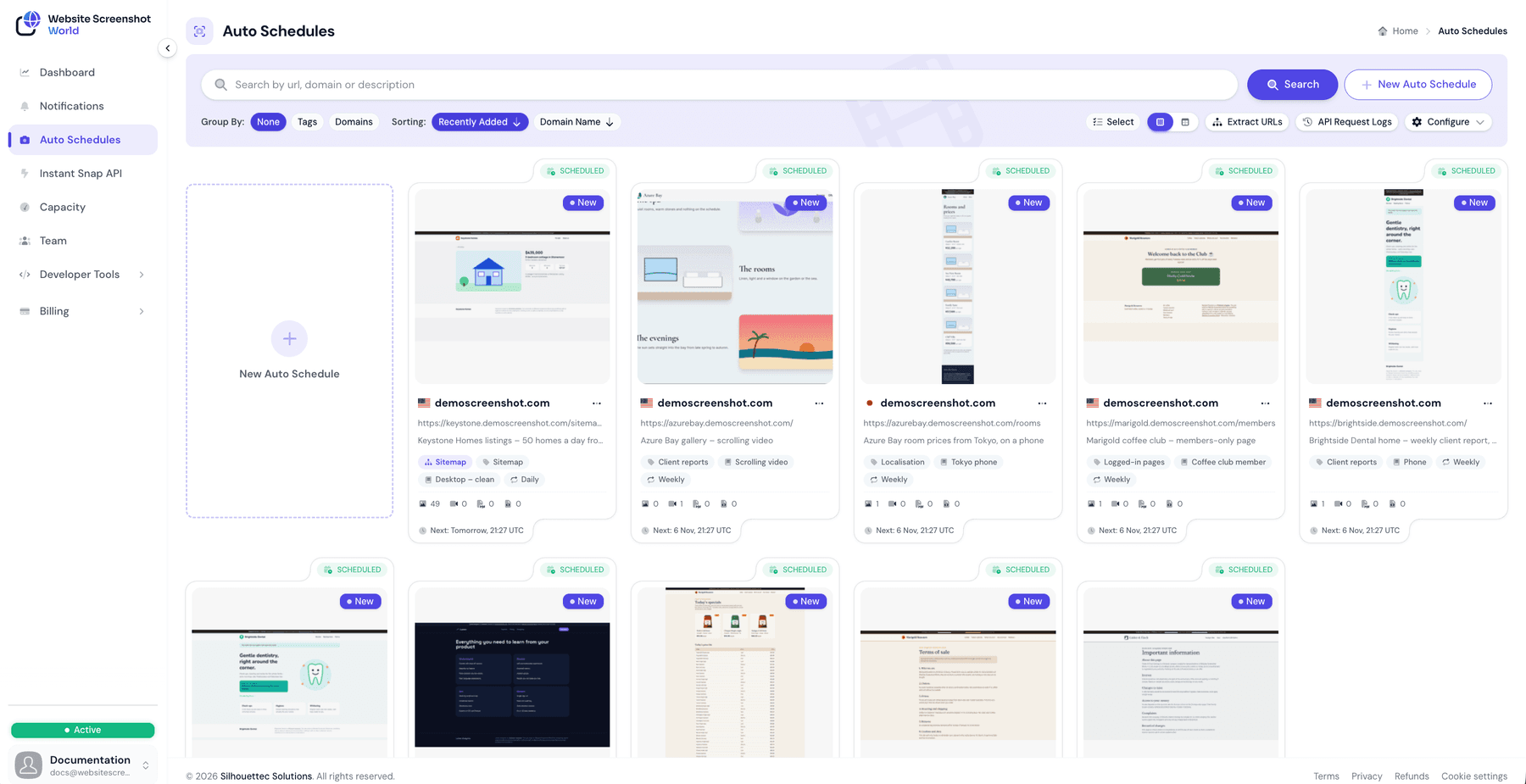
The list has two views, switched with the pair of icons beside the search box. Your choice is remembered in the browser, so the view you prefer is the one you get next time.
- Card view shows the latest capture as a thumbnail, which makes a page that has started rendering wrongly obvious at a glance.
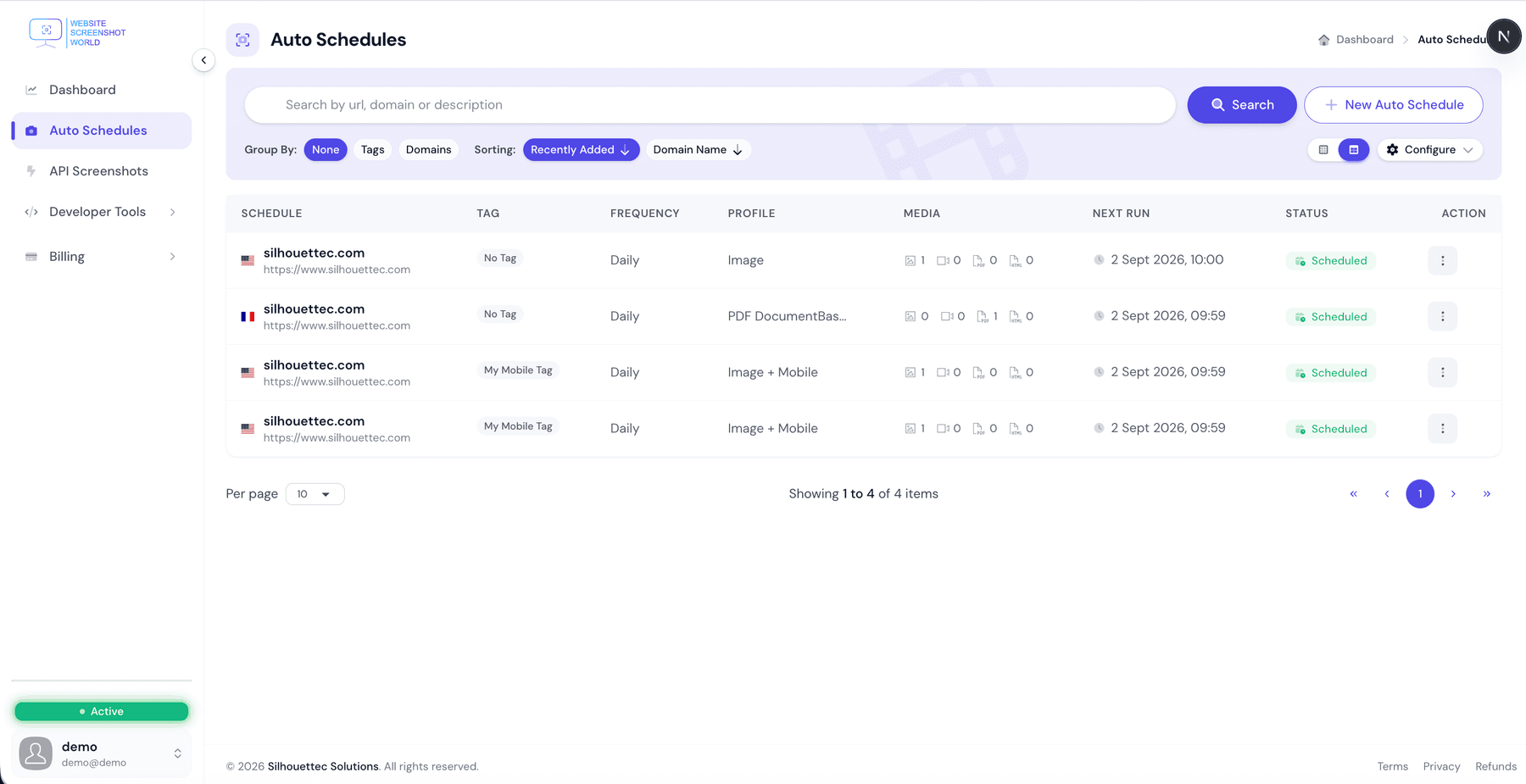
- Grid view is the dense table described below — better once you have more schedules than fit on a screen.
Above the list:
- Search matches the URL, the domain or the description.
- Group By — None, Tags or Domains. Grouping opens a panel on the left listing each tag or domain with how many schedules it holds.
- Sorting — Recently Added or Domain Name. Clicking the active sort again reverses it.
The page you are on is in the URL
What the columns mean
| Value | Meaning |
|---|---|
Schedule | The country flag the capture runs from, the domain, the full URL and your description. |
Tag | Every tag on the schedule, or “No Tag”. |
Frequency | The preset name, or “Custom Frequency” when you defined your own interval. |
Profile | The Web Profile this schedule renders with. |
Media | Four counters — images, videos, PDFs and page source captured so far. |
Next Run | When it fires next, or “No upcoming runs” for a paused or stopped schedule. |
Status | See below. |
Status badges
| Value | Meaning |
|---|---|
Scheduled | Running normally, waiting for its next turn. |
Quick Capturing | A one-off capture you asked for is running right now. |
Paused | No new captures are taken. Existing captures are untouched, and you can resume at any time. |
Paused - storage full | Paused for you because the account ran out of storage. Free up space or add storage and it resumes on its own. |
Paused - subscription ended | Paused for you when the subscription ended. Subscribe again and it resumes on its own, with every setting still in place. |
Stopped | Finished for good — either you stopped it, or it passed its end date. |
Pause and Stop are not the same
A card can also carry a Sitemap chip for a sitemap schedule, and a Changed 12% · 2 hr. ago chip when change detection last found the page different.
Row actions
Every row has the same menu, in both views.
| Value | Meaning |
|---|---|
View | Open the schedule and browse everything it has captured. |
Edit | Change the URL, cadence, tags, profile or page tweaks. |
Clone | Copy every setting into a new schedule — the quickest way to make a near-identical one. |
Quick Capture | Run one capture immediately, outside the schedule. Identical pipeline; it just does not wait. |
Pause / Resume | Hold new captures, then let them continue. |
Stop | End the schedule permanently. |
API Request Logs | Every Auto Schedule API call made for this schedule, refusals included. |
Delete | Remove the schedule. You are asked to confirm. |
The Configure menu
Everything a schedule depends on is reached from Auto SchedulesConfigure rather than from the sidebar. Beside it, the API Request Logs button lists every Auto Schedule API call made with your keys.
| Value | Meaning |
|---|---|
Tags | Group schedules by client, project or environment. |
Web Profiles | The rendering recipe every schedule points at. |
Trigger Windows | Restrict captures to certain hours or days. |
Cloud Storage | Google Drive, Dropbox and S3-compatible destinations. |
Did this page answer your question?
Tell us what is missing