

Storage and delivery
Dropbox delivery
A sign-in rather than a set of keys. Connect once and captures arrive in Dropbox as they are made.
Connecting
- 1
Open Cloud Storage
Auto SchedulesConfigureCloud Storage, then Add destination.
- 2
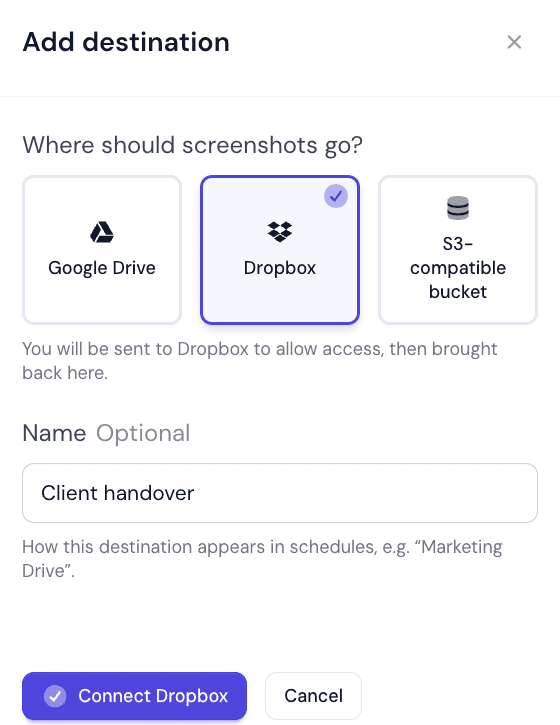
Choose Dropbox and name it
Pick Dropbox under Where should screenshots go? and give it a name that says where the files land. The name is optional; left empty it is called Dropbox.
- 3
Press Connect account
You are sent to Dropbox to sign in and allow access, then brought back. On success the app confirms Dropbox connected. If access was declined you see Dropbox did not authorise the connection., and if something else went wrong, Dropbox could not be connected. Please try again.
- 4
Check the connection
Under Connected accounts the Connection column should read Connected. Test connection in the row’s menu checks it again at any time.
Using it
A new account is placed in the first free default slot when your plan has one. Every Web Profile whose Deliver to is My defaults then uploads to it; or choose it on a single profile with Choose…. From the next capture onwards the files arrive in a WebsiteScreenshotWorld folder in Dropbox.
Pause uploads in the row’s menu is the quick off switch — it stops delivery without losing the connection or the settings on any profile pointing at it.
Re-connecting
Dropbox authorisations lapse when the password changes or the app’s access is revoked from the Dropbox account’s connected-apps settings. The Connection column then reads Needs reconnect.
Choose Reconnect account from the row’s menu and sign in again. Nothing else needs changing — profiles pointing at this destination pick it back up.
Things worth knowing
- Dropbox storage limits are Dropbox’s. A full account means deliveries fail while captures continue to be taken and counted.
- A team account keeps the archive with the team, rather than with whoever connected it.
- Selective sync is a trap. If the destination folder is not synced locally, files are there but not on the machine of the person looking for them.
Same rule as Drive
Did this page answer your question?
Tell us what is missing