

Getting started
The dashboard
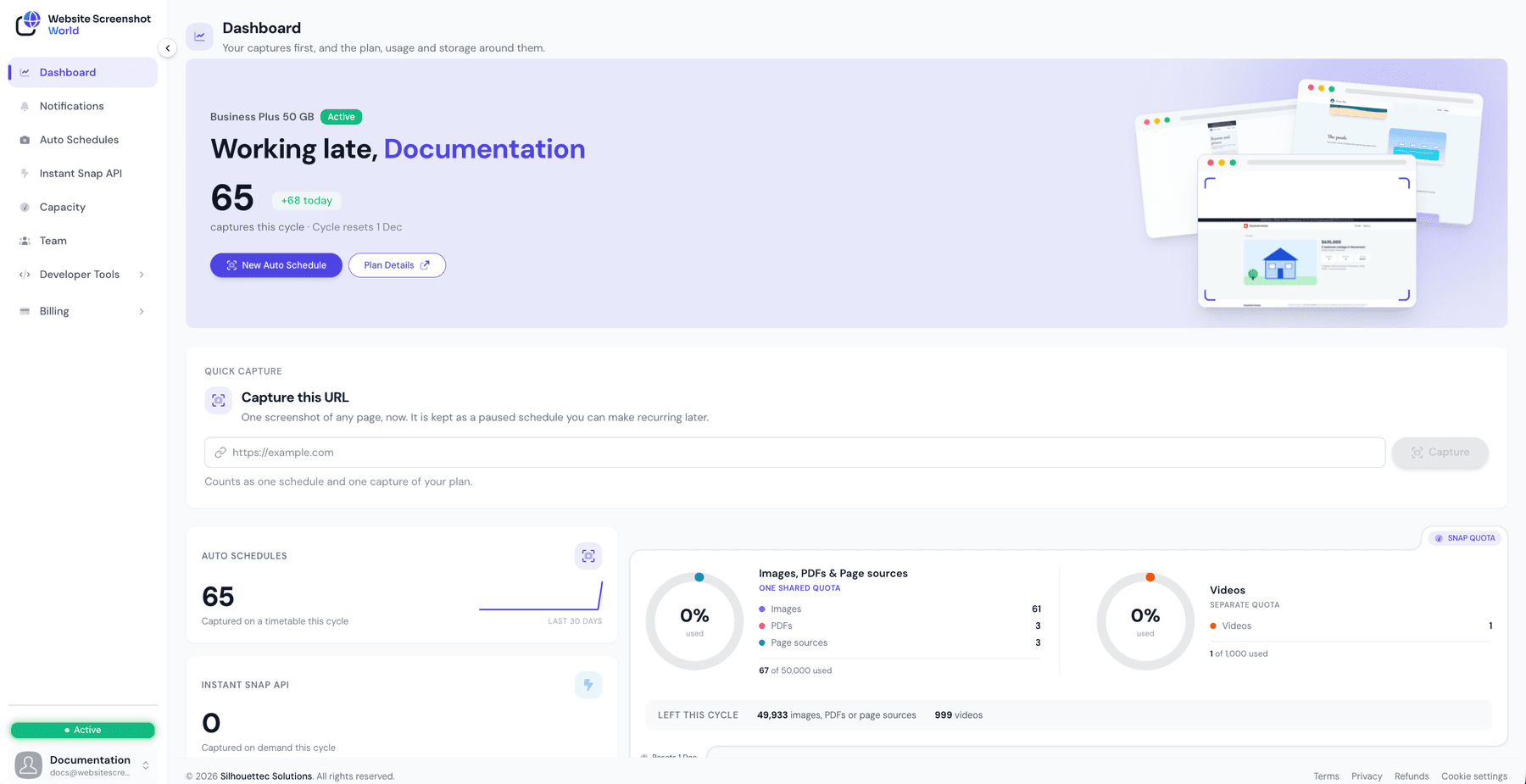
The first screen after sign-in. It answers two questions — is everything running, and how much of the plan is used — and links to the screen that fixes anything that is not.
What it is for
The dashboard is mostly read, not edited. The figures on it live elsewhere: the plan under BillingSubscription, capacity under Capacity, and each capture on its schedule.
Not every role sees it
Your plan
The top of the page names your plan with an Active or Free Trial badge, and the date the capture count resets (Cycle resets) or the trial ends (Trial ends).
A workspace with No active plan that has not used its trial sees a Start free trial button — no card needed. See Plans and subscription.
Captures and quota
| Value | Meaning |
|---|---|
Auto Schedules | Captures taken on a timetable this cycle, with a small trend line. |
Instant Snap API | Captures taken on demand through the API this cycle, with a trend line. |
Snap quota | Images, PDFs and page sources as one shared quota — one ring, split into the three — and videos as a separate quota with a ring of their own. Underneath: how much is left this cycle. |
The quota counts captures, not files: a schedule that also saves the page source uses two captures a run, exactly as it is metered. On a free trial the quota is granted once and ends with the trial; on a plan it resets every month.
Storage
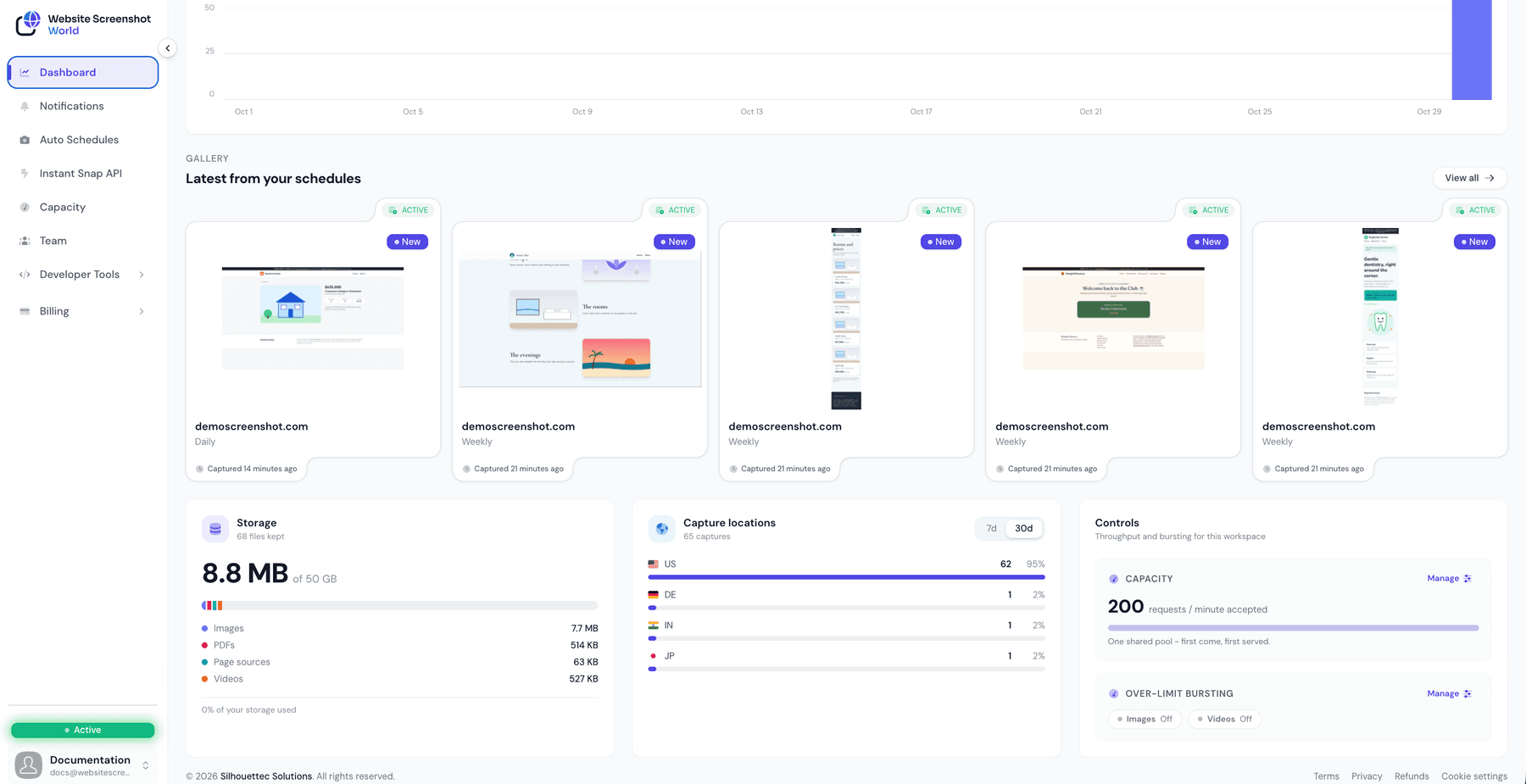
Storage shows what is kept here against your plan’s allowance, how many files that is, and how it splits between images, PDFs, page sources and videos. Storage is one allowance for every kind of file, unlike the capture quotas. Past 90% it says the storage is nearly full.
Captures set to Do not keep after delivery take no space here. Nearly full is the point to delete old captures, switch a profile to deliver and not keep, or add storage from BillingSubscription. See Retention for what happens when it is full.
Captures and activity
| Value | Meaning |
|---|---|
Latest from your schedules | The newest capture of your schedules, with each schedule's status and when it last captured. Opens the schedule. |
Your capture timeline | Captures over the period you choose, as a chart or, with Show as table, as numbers. |
Capture locations | Which countries captures were taken from. |
Controls
Controls shows the throughput settings of the workspace:
| Value | Meaning |
|---|---|
Capacity | Your plan's rate limit - the requests a minute it accepts - and how much of it is reserved for Auto Schedules, reserved for the API, or shared. |
Over-limit bursting | Whether images and videos may continue past the included quota, and by how much — or Not in plan. |
With a running plan, Manage on either card changes the setting in place, for people whose role may manage capacity. Only people whose role can see capacity see these figures. Both settings are explained on Capacity and Plans and subscription.
Did this page answer your question?
Tell us what is missing