

Storage and delivery
Cloud storage
A connected destination that captures are copied to as they are made. Set it up once and the files arrive where your team already works, without anybody logging in here.
Why deliver captures out
- The files reach people who do not have an account here. A shared Drive folder is something a colleague or a client can open.
- They outlive your retention setting. Once a capture is in your own bucket, what this account does with its copy stops mattering.
- They can feed something else. A bucket is a thing other systems can read — a report builder, a comparison job, an evidence archive.
- It is what makes zero retention possible. “Do not keep after delivery” only works when there is somewhere for the capture to have gone.
The three providers
| Value | Meaning |
|---|---|
Google Drive | Connected by signing in to Google and granting access. No keys to handle. |
Dropbox | Connected by signing in to Dropbox and granting access. No keys to handle. |
S3-compatible bucket | Amazon S3 and anything that speaks the same protocol — MinIO, Cloudflare R2, Backblaze B2, Wasabi, DigitalOcean Spaces. Configured with keys rather than a sign-in. |
How many destinations
One capture can be delivered to several destinations at once. How many depends on the plan:
| Value | Meaning |
|---|---|
Starter | 1 destination per capture. |
Pro | 2 destinations per capture. |
Business and Business Plus | 3 destinations per capture. |
Free trial | Cloud delivery is not included. |
You can connect more accounts than that; the limit is on how many one capture is delivered to.
Adding a destination
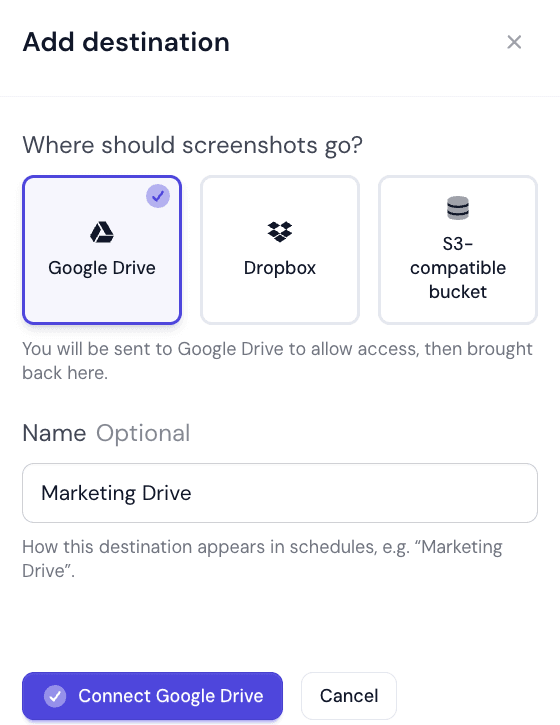
Go to Auto SchedulesConfigureCloud Storage and press Add destination. The panel asks Where should screenshots go? — pick the provider — and for an optional Name, which is how the destination appears in schedules. Make it say where the files land: “Marketing Drive” beats “Drive 1”.
- For Google Drive and Dropbox, Connect account sends you to the provider to allow access, then brings you back.
- For an S3-compatible bucket, Next: bucket details opens the form for the bucket and its keys.
A newly connected account is placed in the first empty default slot, if your plan has one free.
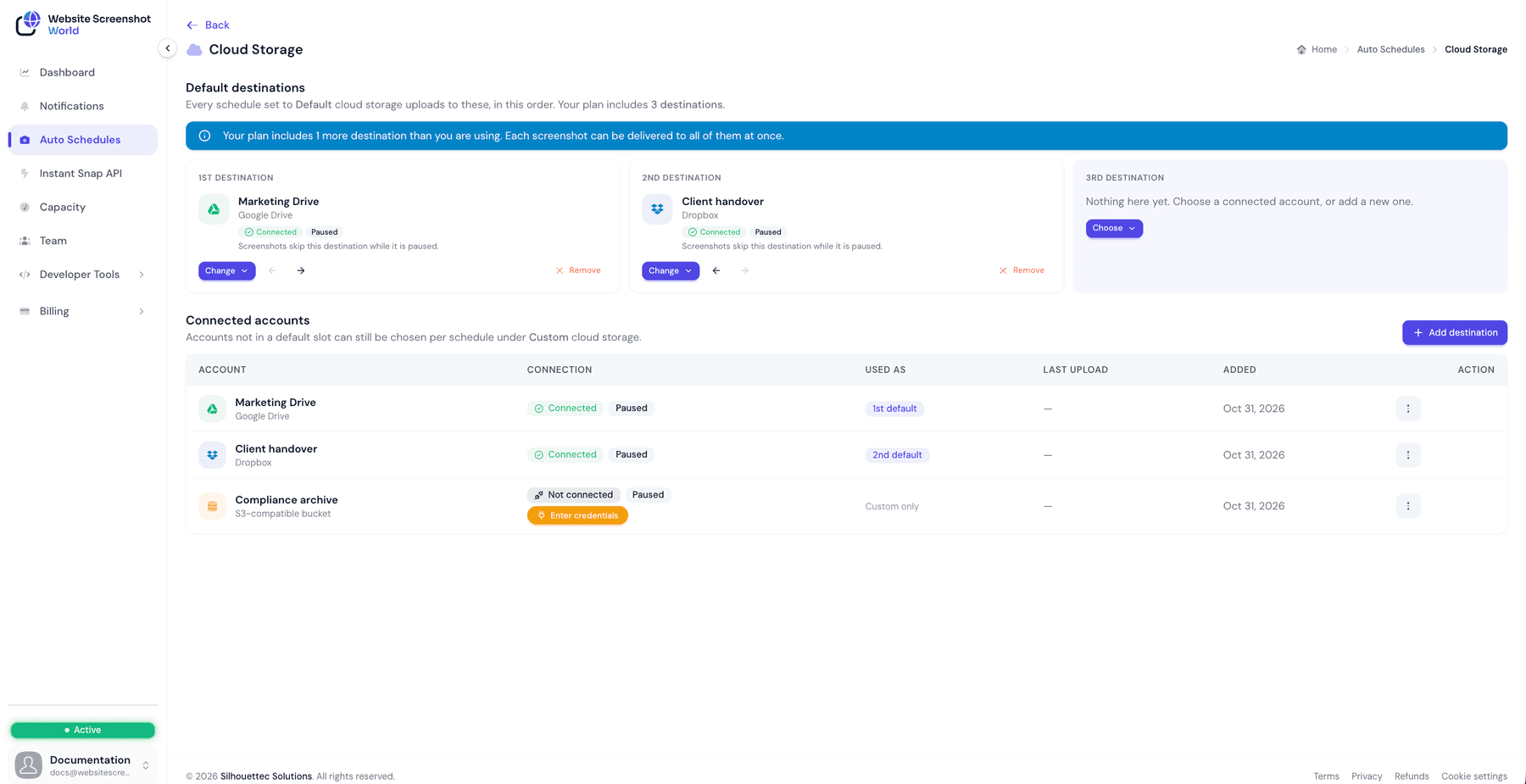
The Cloud Storage screen
The screen has two parts.
| Value | Meaning |
|---|---|
Default destinations | One card per destination your plan includes, in order. Every Web Profile set to My defaults uploads to these. Choose an account for each card, and move them up or down. |
Connected accounts | Every destination you have added, with its Account, Connection, Used as (a default slot, or Custom only), Last upload and Added date. |
Each connected account’s menu offers:
| Value | Meaning |
|---|---|
Test connection | Checks the destination can take an upload right now. |
Reconnect account | Google Drive and Dropbox: sign in again. S3: Update credentials. |
Rename | Change the name shown in schedules. |
Pause uploads / Resume uploads | Stops delivering to this destination without disconnecting it. Screenshots skip it while it is paused. |
Remove destination | Deletes the connection. |
Paused by plan
Using a destination on a profile
Delivery is switched on per Web Profile, with Deliver to in its After the capture section:
| Value | Meaning |
|---|---|
Nowhere | Captures stay in the app only. The default. |
My defaults | Deliver to the default destinations, in their order. |
Choose… | Choose destinations explicitly for this profile — First, Second and Third destination, as many as your plan includes. |
Several destinations means the same capture is written to each of them. That is a deliberate belt and braces for evidence work: one copy in your bucket, one in a shared Drive, one somewhere offsite.
A profile needs a working destination
Where the files land
Every provider gets a WebsiteScreenshotWorld folder at the top, and inside it a folder per site, such as WebsiteScreenshotWorld/example.com/. Each file is named from the page address followed by the capture time, down to the minute. The pages of a sitemap run go into one folder per run instead, named by the run’s time and each file named by its page path.
When a connection breaks
OAuth grants get revoked, passwords change, keys get rotated, buckets get deleted. The Connection column says what state each destination is in:
| Value | Meaning |
|---|---|
Connected | Uploads are working. |
Needs reconnect | The provider no longer accepts the connection, or the bucket rejected the key. Reconnect, or enter the current key and secret. |
Unreachable | The account is fine but the destination is not usable right now. Check it and test again. |
Not tested | Connect the account, then run a test to confirm uploads will work. |
Check the connection before relying on zero retention
Did this page answer your question?
Tell us what is missing