

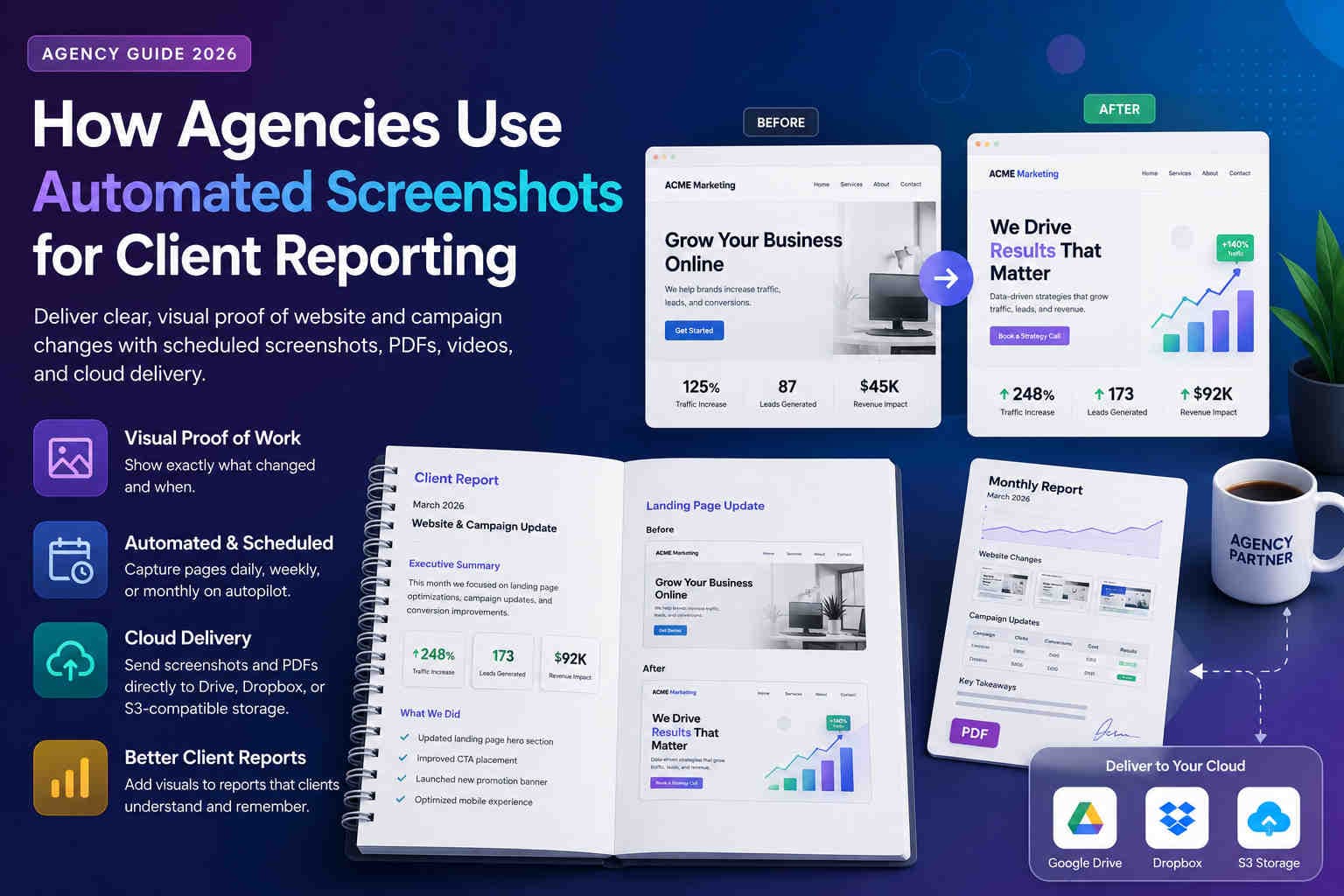
How Agencies Use Automated Screenshots
for Client Reporting
Client reports are stronger when they include visual proof. Learn how SEO, PPC, design, and compliance agencies use scheduled screenshots, PDFs, videos, and cloud delivery to document work and show progress clearly.
Agency reports often rely on metrics: rankings, traffic, conversions, ad spend, clicks, impressions, and campaign performance. Those numbers matter, but they do not always show what actually changed on the website.
Automated screenshots solve that gap. They give agencies a visual record of landing pages, campaigns, pricing pages, mobile layouts, legal pages, and before/after website changes — without manually taking screenshots every month.
Show exactly what was changed, launched, or reviewed.
Add screenshots and PDFs to monthly client updates.
Keep a timeline of client websites and campaigns over time.
Why client reporting needs visual proof
Clients do not always remember what their website looked like last month.
A client may approve a landing page change, forget the previous layout, and later ask why performance changed. Without visual history, the agency has to rely on memory, screenshots in chat threads, or old design files.
Automated captures create a reliable timeline. Every scheduled run produces a record that can be used in monthly reports, campaign reviews, stakeholder approvals, and before/after documentation.
Client website
  ↓
Scheduled capture
  ↓
Screenshot / PDF / Video
  ↓
Google Drive, Dropbox, or S3
  ↓
Monthly client reportHow agencies use automated screenshots
Different agency types use visual captures for different reporting problems.
SEO agencies
Document content updates, landing page changes, schema pages, local pages, and before/after website improvements.
PPC agencies
Capture campaign landing pages, promotional pages, checkout flows, and mobile ad destinations.
Web design agencies
Preserve redesign history, homepage changes, client approvals, and responsive layout updates.
Compliance agencies
Track policies, cookie banners, disclosures, and regulated claims as part of audit records.
Before/after reporting
Before/after screenshots make website work easier to understand.
Clients may not notice technical work, but they understand visual progress. Before/after captures are especially useful for redesigns, conversion updates, content refreshes, and landing page testing.
Before
- Old hero copy
- Previous pricing section
- Outdated campaign banner
- Older mobile layout
After
- New positioning
- Updated CTA flow
- New campaign creative
- Improved responsive layout
SEO and PPC campaign reporting
Campaign performance numbers are stronger when paired with visual context.
SEO and PPC reports often include charts and metrics. But when clients ask “what did we actually change?” screenshots provide the missing context.
| Agency activity | What screenshots prove |
|---|---|
| Landing page optimization | Headline, CTA, form, and layout changes. |
| Promotion launch | Campaign banner, offer wording, and page state. |
| SEO content update | Published page structure, content blocks, and page layout. |
| Mobile campaign check | What mobile visitors saw after clicking ads. |
Web design and redesign reporting
Design changes should not disappear after deployment.
Web design agencies can use automated screenshots to keep a permanent record of design progress. This helps during approvals, revisions, launch reviews, and maintenance.
- Homepage redesign history
- Landing page version comparison
- Mobile and tablet layout checks
- Client approval records
- Post-launch verification
Compliance and approval records
Some agency work needs evidence, not just reporting.
Agencies working with regulated industries, healthcare, finance, ecommerce, affiliates, or legal-sensitive pages often need to preserve what was published at a specific time.
- Affiliate disclosures
- Cookie banners
- Pricing claims
- Legal disclaimers
- Terms and privacy policy updates
Screenshot vs PDF vs Video for client reports
Each format helps tell a different part of the story.
Best for before/after comparisons, layout proof, and visual progress.
Best for monthly reports, audit packets, and stakeholder sharing.
Best for animations, menu behavior, scrolling pages, and user flows.
A practical client reporting workflow
Build a repeatable reporting system that works across multiple clients.
- 1) Create one folder per client in Drive, Dropbox, or S3.
- 2) Create schedules for homepage, key landing pages, pricing, legal pages, and mobile views.
- 3) Capture screenshots weekly or monthly, depending on report cadence.
- 4) Generate PDFs for monthly client reports or approvals.
- 5) Review changes before sending the report.
- 6) Keep archives organized by client, domain, year, and month.
Common reporting mistakes
Visual reporting only works when captures are organized and repeatable.
- Taking screenshots manually: manual work is easy to forget and hard to repeat consistently.
- Only capturing desktop: clients often care about mobile visitors, especially for ads and ecommerce.
- No folder structure: reports become harder to build when every file lands in one folder.
- No before capture: you cannot show before/after progress if you did not capture the starting point.
- Not keeping originals: always preserve the original captures before editing or annotating them.
FAQ
Quick answers.
Create Shot Schedules for important client pages and deliver captures to a client-specific cloud folder. Use screenshots for visual proof and PDFs for reports.
Yes. Screenshots make reports easier to understand because clients can see what changed instead of only reading metrics.
PDFs are useful for monthly reports, stakeholder approvals, compliance packets, and client archives. Screenshots provide visual proof; PDFs make the proof easier to share.
Yes. Mobile visitors may see different layouts, banners, menus, and CTAs. Mobile captures are especially useful for PPC landing pages and ecommerce clients.
Build better client reports
Automate screenshots, PDFs, and videos for client websites, then deliver them directly to organized cloud folders for reporting and review.
TL;DR
The simple version.
- Automated screenshots help agencies show visual proof of work.
- Before/after captures are useful for SEO, PPC, design, and compliance reporting.
- PDFs are useful for client-ready reports and stakeholder sharing.
- Mobile screenshots are important for ads, ecommerce, and responsive QA.
- Store captures by client, domain, year, and month for easy retrieval.